EARLY ACCESS · FIRST 50 SEATS


Nine AI coding agents,
one 63 MB Mac app

Claude Code, Codex, Gemini CLI and six more agents in a single window — no terminal required. Every conversation is kept and can be resumed where you left off. You can also drive it from your phone while you are away from your desk.

A free tier is available. Card payment via Stripe, cancel any time.
Please note: the app interface is currently in Japanese only. See Requirements before you buy.

  • 63 MBInstalled app. About 1/14 the size of Cursor, 1/24 of VS Code (measured)
  • 9AI agents you can switch between
  • All of itClaude Code and Codex history, searchable and resumable
The ULCode window: one instruction in plain Japanese, and the AI writes the file and shows the result
01 / FOOTPRINT

Small enough to forget it is running

0.1.70Latest versionUpdated October 12, 2026, with in-app updates supported
63 MBInstalled appCursor is 858 MB, VS Code is 1.5 GB
47 MBMemory while workingCursor uses 300 MB under the same conditions
1Process launchedCursor launches 8

Why it is this small

Cursor and VS Code each ship an entire browser engine inside the application. That is why the app alone approaches 1 GB, why several processes start in the background when you open it, and why a few hundred megabytes of memory stay occupied the whole time.

ULCode uses the rendering engine that already ships with macOS. It carries no browser of its own, so the download, the disk footprint and the memory all stay small. You can keep using your other applications normally while the AI works. Even on a Mac with 8 GB of memory, you do not have to close things to make room for an AI editor.

All figures were measured on the same Apple Silicon Mac. Disk usage was measured with du; memory with the standard macOS footprint command, with ULCode and Cursor running at the same time. VS Code was not running at the time of measurement, so its memory and process count were not measured.

02 / FEATURES

What ULCode does

01

Every past conversation is kept, and you can pick up where you stopped

Whatever you said through Claude Code, Codex or Gemini CLI lands in one history. Search the full text by prompt, folder or model, read back through a session and press “resume” to continue that same conversation. You stop losing time hunting for what you asked last week.
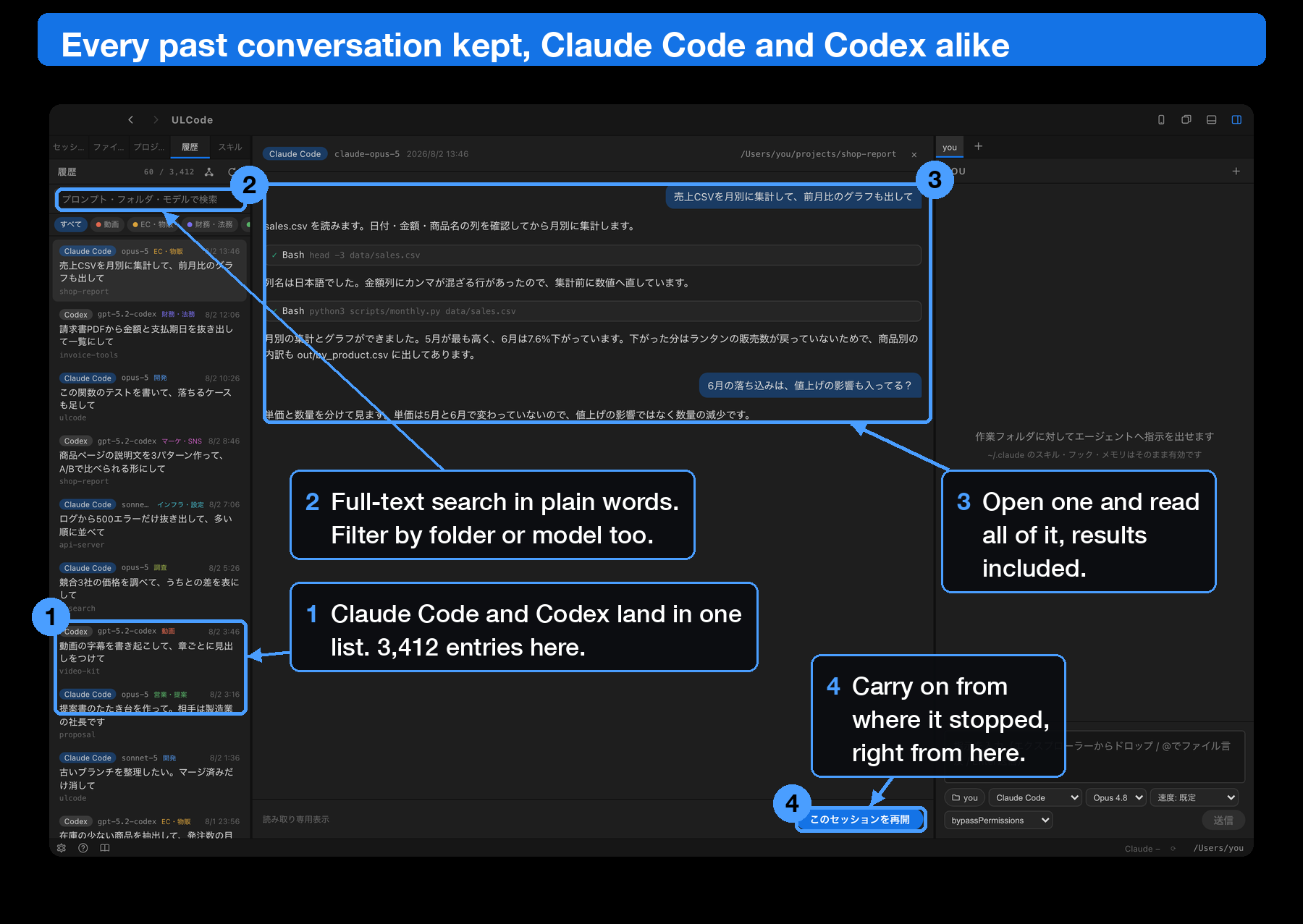
History view listing Claude Code and Codex sessions, with full text and a resume button
02

Switch between the AI subscriptions you already pay for

Claude Code, Codex, Gemini CLI, Ollama, GLM, OpenCode, Kimi, Grok Build and Cursor CLI — nine agents you can switch between. You can also switch models mid-conversation. If you hold more than one account with the same provider, register each login once and swap with a single click. Remaining quota for each subscription stays visible at the bottom of the window.

03

Carry on from your phone while you are out

Scan a QR code and you can send instructions to the AI running on the Mac at home. It works on the same Wi-Fi and from outside your network. Check progress on the move, approve steps and queue up the next instruction, and let it run. On the Mac version an optional setting keeps work running even with the lid closed, so you can check the result from outside. The connection is authenticated, so nobody else can use it.

04

See your skills in one list and edit them on the spot

Your local skills (~/.claude/skills) are listed, categorised and drawn as a graph; select one and it opens in the editor, ready to change. You can also have the AI write a new skill and save it for you. No need to remember where the configuration files live.
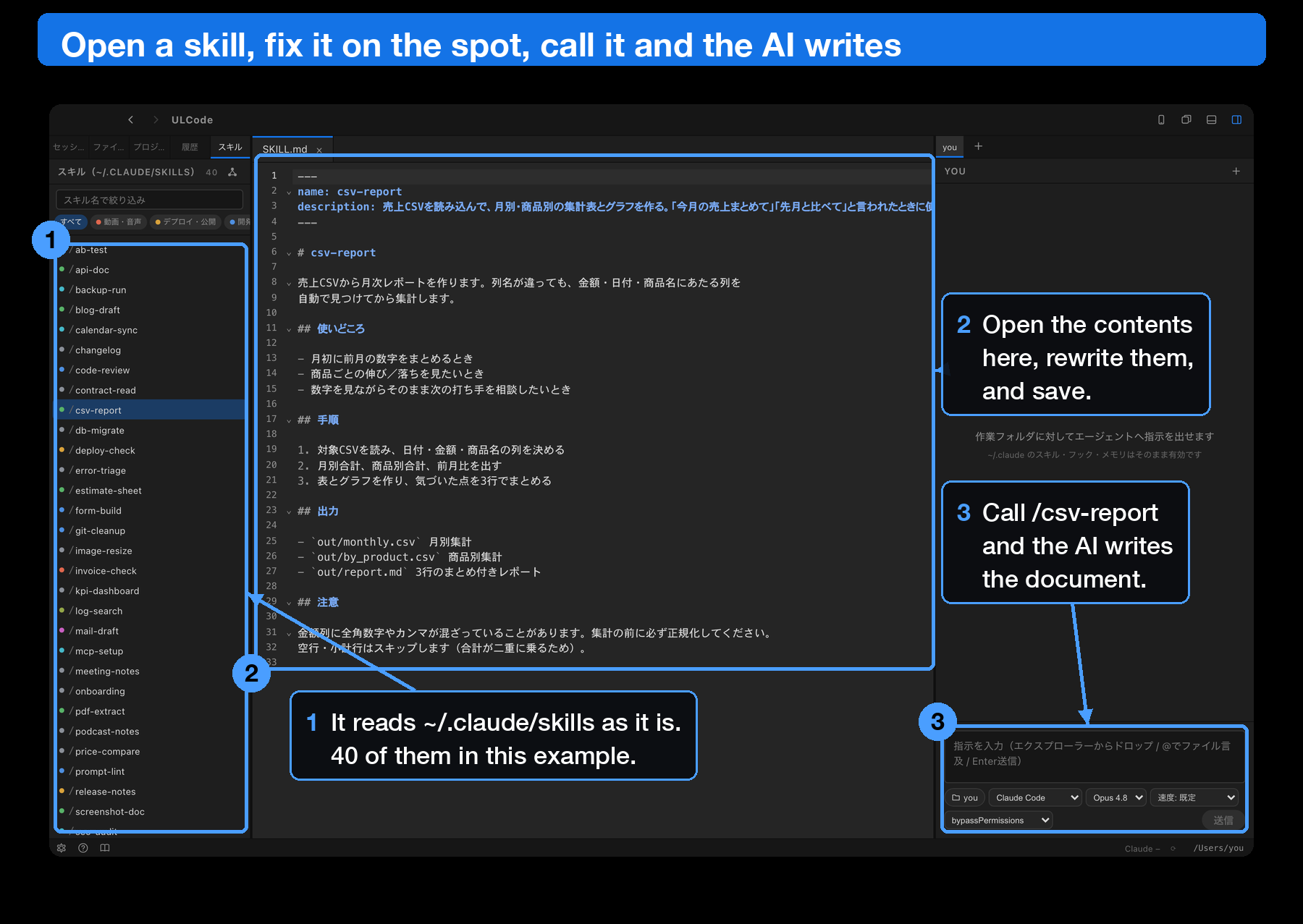
Skill list next to a SKILL.md file open in the editor
05

A tab per project. Leave one running and move to the next

Projects in different working folders get their own tabs and run at the same time. A tab you closed can be reopened later. The list shows which ones are running and for how long. You can type the next instruction while one is still working, and it is sent automatically as soon as that run finishes.
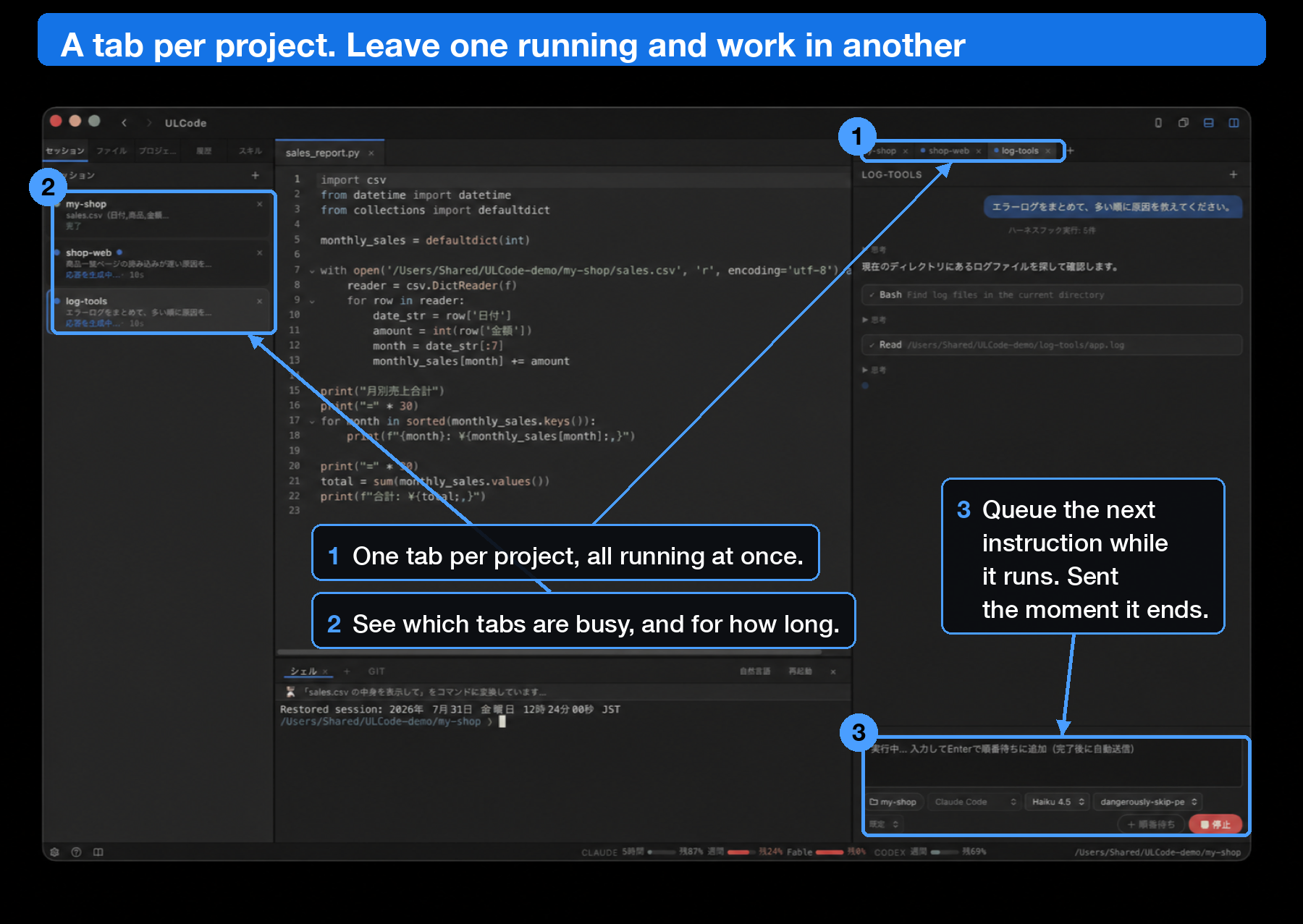
Several projects running in parallel across tabs
06

Plain Japanese becomes a shell command

Type “resize every png in this folder” in Japanese in the built-in terminal and it is turned into a command and run. The conversion happens on your Mac, so this feature costs nothing extra. Destructive operations such as deletion always stop for confirmation first. This feature currently expects Japanese input, and the explanation it shows is in Japanese.
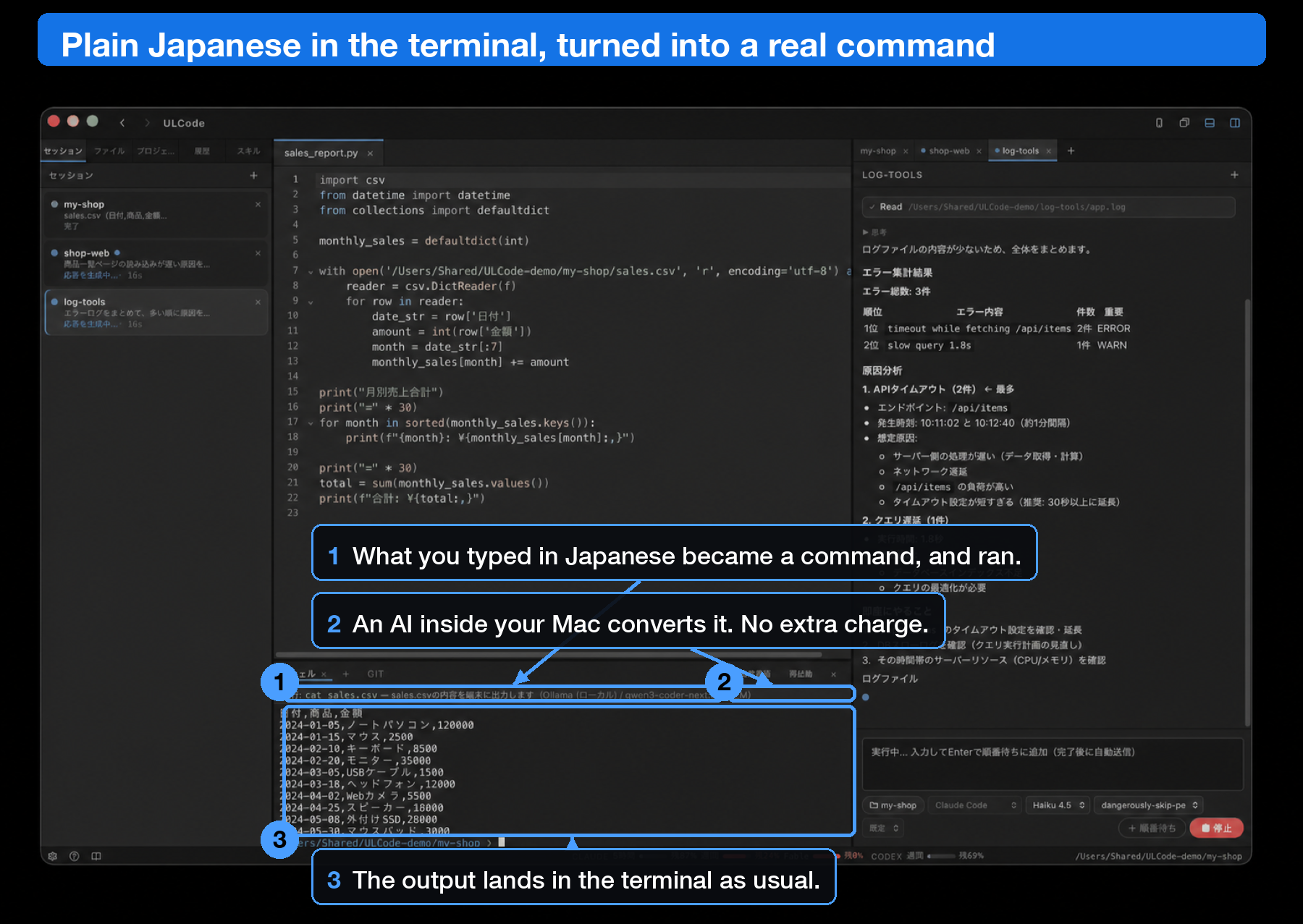
Terminal converting a Japanese sentence into a shell command and running it
07

See what is moving, what finished and exactly why it is waiting

A central progress view shows preparation, thinking, tool work, answer-waiting, completion and produced files. Answer waits glow, and the view counts down to the next stall warning or automatic-recovery decision. You can tune the automatic compaction threshold, and a silent run can perform one safety-gated automatic recovery.

08

See every job and its state in a vertical Spaces list

Working folders you open are kept automatically as Spaces. Tasks in the same folder are combined into one clear state: Running, Waiting for reply, Possibly stalled, Queued or Stopped. You can see which job needs you and which one may be stuck without opening every tab.

09

Close a terminal view without stopping the work

Terminal sessions can be named and keep running when you switch tabs, hide the bottom panel or detach the view. Reconnect to the same session to restore its recent output. Ending the process is a separate two-step action, so closing a view cannot kill it by accident.

10

Resume everything that stopped, in one action

Tabs that paused waiting for an answer or a confirmation can be selected and resumed in bulk. Even with many jobs running in parallel, you can move just the stopped ones forward together.

11

When the AI stops at A, B or C, it explains with a diagram and reads it aloud

When the AI offers choices and pauses, it turns the differences into a diagram and reads them aloud. Even without the jargon, you can see what each option will do before you decide.

12

The AI takes your way of thinking into account every time

The values and policies you write in your "self-axis note" are referenced by the AI in every tab, on every task. Agents that run outside your machine, such as GLM and Kimi, do not receive it by default. The twin feature (off by default) records what you fixed, chose or rejected, distils it into a notes file, and consults it when acting on your behalf.

13

Keep keys and passwords encrypted in a vault

API keys and login details are stored encrypted on your Mac. Taking one out requires Touch ID. You can hand a key to the AI's work without pasting it into the chat.

14

Finished work lands straight on a shelf

Apps and pages you build with the AI line up on a portfolio shelf you can revisit. Export them as a ZIP, or publish to GitHub Pages (requires the gh CLI to be set up).

15

Screen recording and area screenshots, all on your Mac

Record your actions or grab a cropped screenshot from inside the app. Everything stays on your Mac, so no images are sent to an outside service.

03 / SCREENSHOTS

The actual application

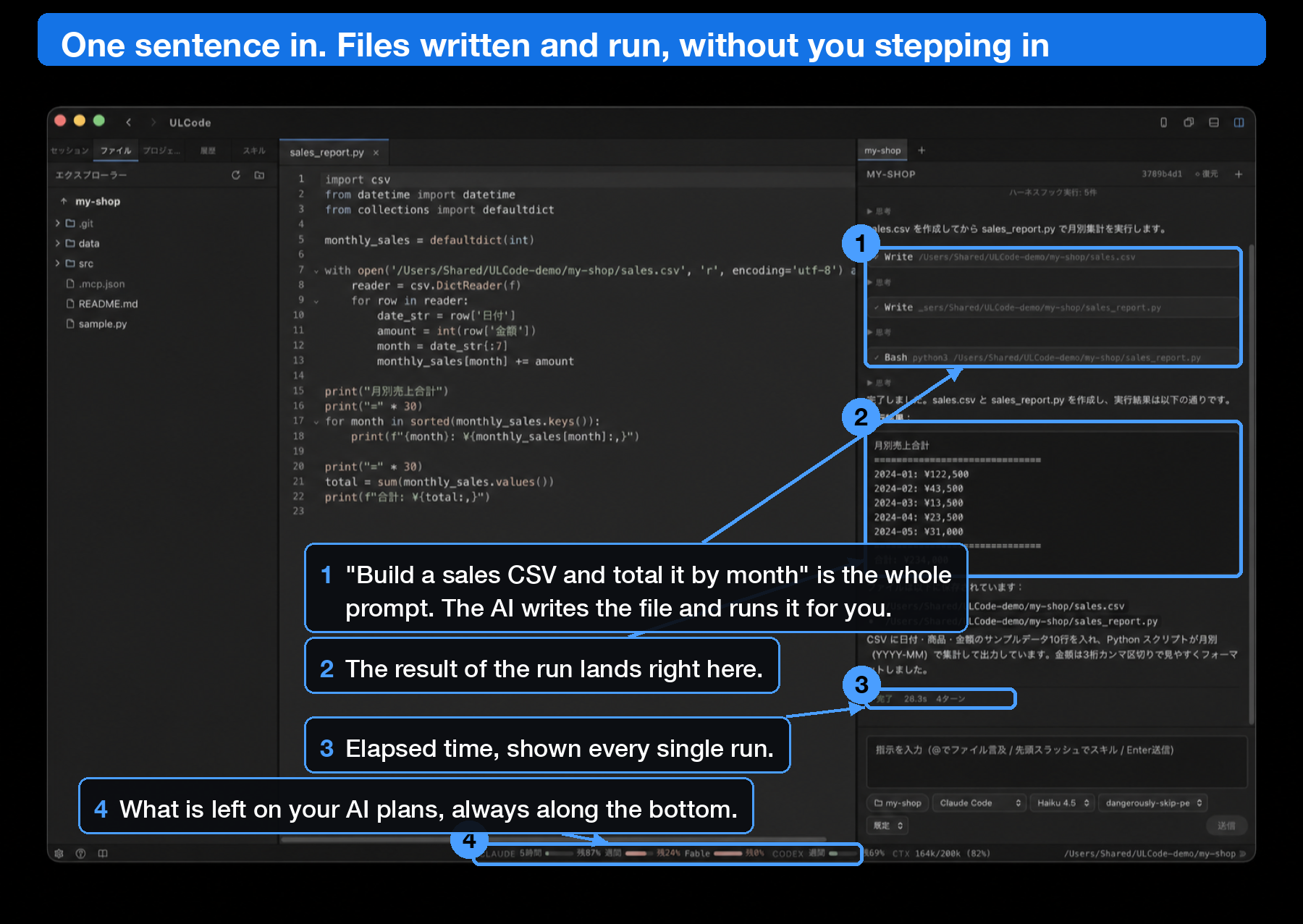
These are real ULCode screens (the work shown is sample material prepared for the demo). The blue frames and numbers were added afterwards to point out what is happening where. Click any image for full size. The interface shown is Japanese, which is the only interface language today.

The AI creating a file and running it from a single instruction, with annotations
One instruction, and the AI writes the file and runs it.“Make a sales CSV and give me a monthly summary” produced the CSV, a script, the run and the results in 28 seconds. The elapsed time and usage windows for your AI subscription are shown on screen.
Three projects running in parallel across tabs, with annotations
One tab per project, all running at once.Different agents work in different folders simultaneously, and the list tells you which are running and for how long. Type the next instruction during a run and it is sent as soon as that run ends.
History screen listing past Claude Code and Codex sessions with full text and resume, annotated
Claude Code and Codex history, all of it, in one place.Sessions you ran in the terminal appear in the same list and are searchable in plain language. Open one to read the whole thing including tool output, then resume it from where it stopped.
Skill list from ~/.claude/skills with a SKILL.md open in the editor, annotated
Open a skill and rewrite it right there.ULCode reads ~/.claude/skills directly, so the skills you already use are the ones listed. Edit the file, save it, then call it as /csv-report and the AI produces the document.
Terminal converting Japanese into a shell command and running it, annotated
Write to the terminal in plain Japanese.“Show me what is in sales.csv” becomes cat sales.csv and runs. The conversion happens on your Mac, so the feature costs nothing extra.
04 / COMPARISON

How it compares

→ The table scrolls sideways

ULCode ProCursorVS Code
+ extensions
CLI alone
Monthly price (excl. tax)¥1,980about ¥3,000FreeFree
Several AI agents in one window◎ 9 agents△△ (separate UI per extension)× (launch each one)
Multiple accounts for the same AI◎××× (swap env vars by hand)
Control from a phone◎×××
Full-text history search and resume◎ across all agents△ (its own history only)△ (split per extension)×
Installed size (measured)63 MB858 MB1.5 GB—
Memory while running (measured)47 MB300 MBnot measured—
Processes launched (measured)18not measured—
Inference costyour own subscriptionincluded in the feedepends on the extensionyour own subscription
Interface languageJapanese onlyEnglishEnglish + localisationsEnglish

Memory and process counts were measured with ULCode and Cursor running at the same time on one Mac, using the standard macOS footprint command. VS Code was not running during the measurement, so those two rows were not measured for it.

05 / REQUIREMENTS

Before you buy

  • The interface is Japanese: every menu, button and message in the application is in Japanese today. An English interface is in preparation, with no release date fixed yet. If you do not read Japanese, please treat this as a limitation rather than a temporary inconvenience.
  • The Mac: an Apple Silicon Mac (M1 or later). Intel Macs are not supported.
  • An AI subscription: you need your own subscription or API key for the agents you want to use, such as Claude Code or Codex. AI usage is not included in the ULCode fee.
  • First-time CLI setup: the command-line tool for each agent must be installed and logged in. The step-by-step guide is the tutorial site, which is written in Japanese.
  • Support and documentation: the tutorial, the setup guide and support replies are in Japanese.

Without a subscription and a completed setup for at least one agent, ULCode will start but will not be able to run anything. ULCode is an interface for the AI subscriptions you already hold, not an AI service of its own.

06 / PRICING

Pricing

Monitor edition

¥0Free, just register your email
  • Editor and AI chat (Claude Code / Codex and more)
  • Terminal and Spaces
  • Full history with graph view
  • Voice input
  • Guided tutorial tour
  • Phone remote control
  • Skill management
  • GitHub integration (PR creation)
  • Detach and reattach terminals
  • Natural language to shell command
  • Open in a separate window
  • Issue-driven development flow
Download free
RECOMMENDED

Pro

¥1,980/month, excl. tax
  • Everything in Monitor edition
  • Phone remote control and tunnelling
  • Skill management
  • GitHub integration (PR / repo creation)
  • Detach and reattach terminals
  • Natural language to shell command
  • Open a Space in a separate window
  • One-click issue-driven development flow
  • Priority updates
  • ¥19,800/year excl. tax (two months free)
Start Pro

Team

¥4,980/seat/month, excl. tax
  • Everything in Pro
  • From 5 seats, paid annually
  • Bank transfer against an invoice
  • Priority support
  • Japanese qualified invoice supported
Team plan details
Early access is limited to the first 50 seats. Sales pause once the seats are taken, and reopen after the next update. Your licence key and download instructions arrive by email within 24 hours of purchase. All prices are in Japanese yen and are billed in yen.
07 / FOR TEAMS

For teams (annual, invoice and bank transfer)

  • Per seat: ¥4,980 per seat per month excluding tax, or ¥59,760 per seat per year excluding tax when paid annually in advance.
  • Minimum: five seats. Five seats come to ¥298,800 per year excluding tax.
  • Payment: bank transfer against an invoice is supported, and card payment is also available. A written quotation is issued before you order, so it can go straight into your approval process.
  • Invoicing: we are a registered qualified invoice issuer in Japan. The registration number appears on the quotation and the invoice.
  • Licences: licence keys for the number of seats you order are issued together and handed to one contact.

Team customers also need their own AI agent subscriptions (Claude Code and so on) for each user or for the company. AI usage is not included in the seat price. Invoicing and the quotation are set up for Japanese companies; if you are ordering from outside Japan, please ask us first. Enquiries in English are welcome.

Ask about the team plan (quotation)

08 / FAQ

Frequently asked questions

Can I use ULCode in English?
Not yet. Every screen in the application is in Japanese, and so are the tutorial and the support replies. An English interface is being prepared, but there is no release date. If you do not read Japanese, we would rather you knew that before paying than after.
Is AI usage included in the monthly fee?
No. ULCode runs on the Claude, ChatGPT or other subscriptions and API keys you already have. That is why the ULCode fee itself stays low.
Why is it so small, and does it really feel lighter?
Cursor and VS Code bundle a whole browser engine, which puts the application at around a gigabyte. ULCode uses the rendering engine already built into macOS, so it does not carry that weight. Measured on the same Mac: 63 MB installed (Cursor 858 MB, VS Code 1.5 GB), 47 MB of memory while working (Cursor 300 MB), and one process at launch (Cursor eight). On a Mac with 8 GB of memory you do not have to close anything to make room.
What do I need to run it?
An Apple Silicon Mac (Intel Macs are not supported), plus an account for whichever AI agent you want to use, such as Claude Code.
Is installation complicated?
The app is notarised by Apple, so you download it and open it. A setup guide and tutorial are included, in Japanese.
Can I cancel at any time?
Yes. Cancelling stops billing from the next renewal date onwards. Partial months are not refunded.
Can I pay by invoice and bank transfer?
Yes, on the team plan (five seats or more, paid annually in advance). A quotation is issued before you order, and the licence keys are handed over once payment is confirmed. Monitor edition and Pro are card payment only.
Can I buy from outside Japan?
Card payment goes through Stripe and is charged in Japanese yen, so an ordinary international card works. Please check your card issuer's foreign transaction fee. For team orders from outside Japan, contact us first, since the invoice and quotation formats follow Japanese practice.
I am not an engineer. Can I still use it?
Yes, provided you read Japanese. Terminal work can be replaced with plain Japanese, so you can start without knowing commands, and the tutorial walks through real screens.
Do school students need to buy Pro?
Students of OZ8 Inc. courses and consulting programs receive a Student edition license key that unlocks every feature for the duration of the program. When the program ends, the app automatically returns to the Monitor edition. Purchase Pro to keep the full feature set.
Start Pro — ¥1,980/month (excl. tax)

First 50 seats · cancel any time · Japanese interface only